Changing your username and adding aliases
Change your profile address and your display name, and add other addresses that lead to the same profile.
Updated October 22, 20261 min read
Changing your username
Your username is your profile address (slaze.cc/yourusername). To change it: Settings → Info → Username → Edit, or the pencil on the Username card on the Overview page.
- Free: once every 7 days (your first change is instant). The Username card tells you when you can change it next.
- With Premium: no limit.
The rules are the same as when you sign up: see Creating your account.
Changing your display name
The display name is the big name on your profile. It can include capitals, spaces and emojis (32 characters max). You change it in Settings → Info, with no waiting period.
Aliases
An alias is an extra address that leads to your profile. Example: your profile is slaze.cc/demo, you add the alias thedemo, and slaze.cc/thedemo opens your profile too.
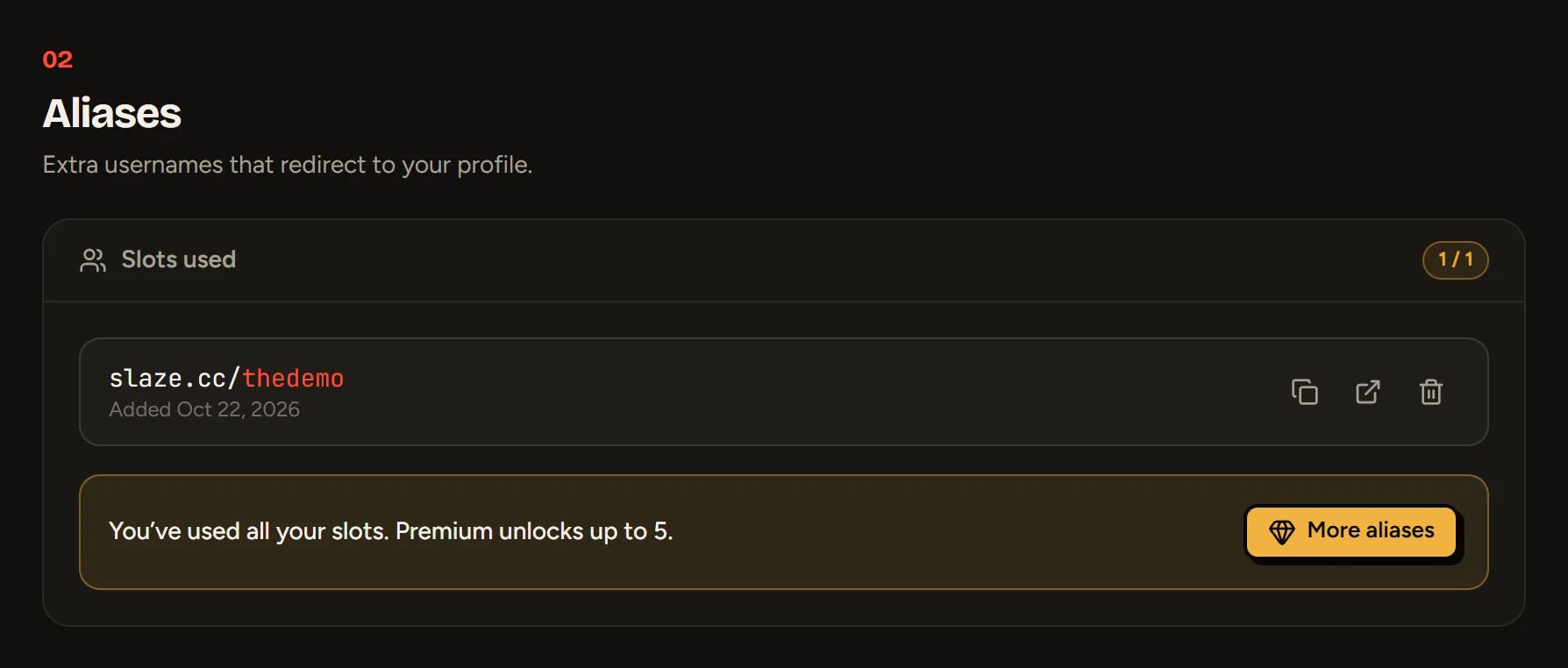
- Open Settings → Aliases.
- Type the alias in New alias (same rules as a username, and it has to be free).
- Click Add.
Aliases: 1 for free, 5 with Premium. Deleting an alias frees it up for others.
Still stuck?
Email us and describe the problem: we’ll reply by email, in English or French.