Two-factor authentication and sessions
Turn on 2FA, keep your recovery codes and log out a device.
Updated October 22, 20262 min read
These settings are in Settings → Security.
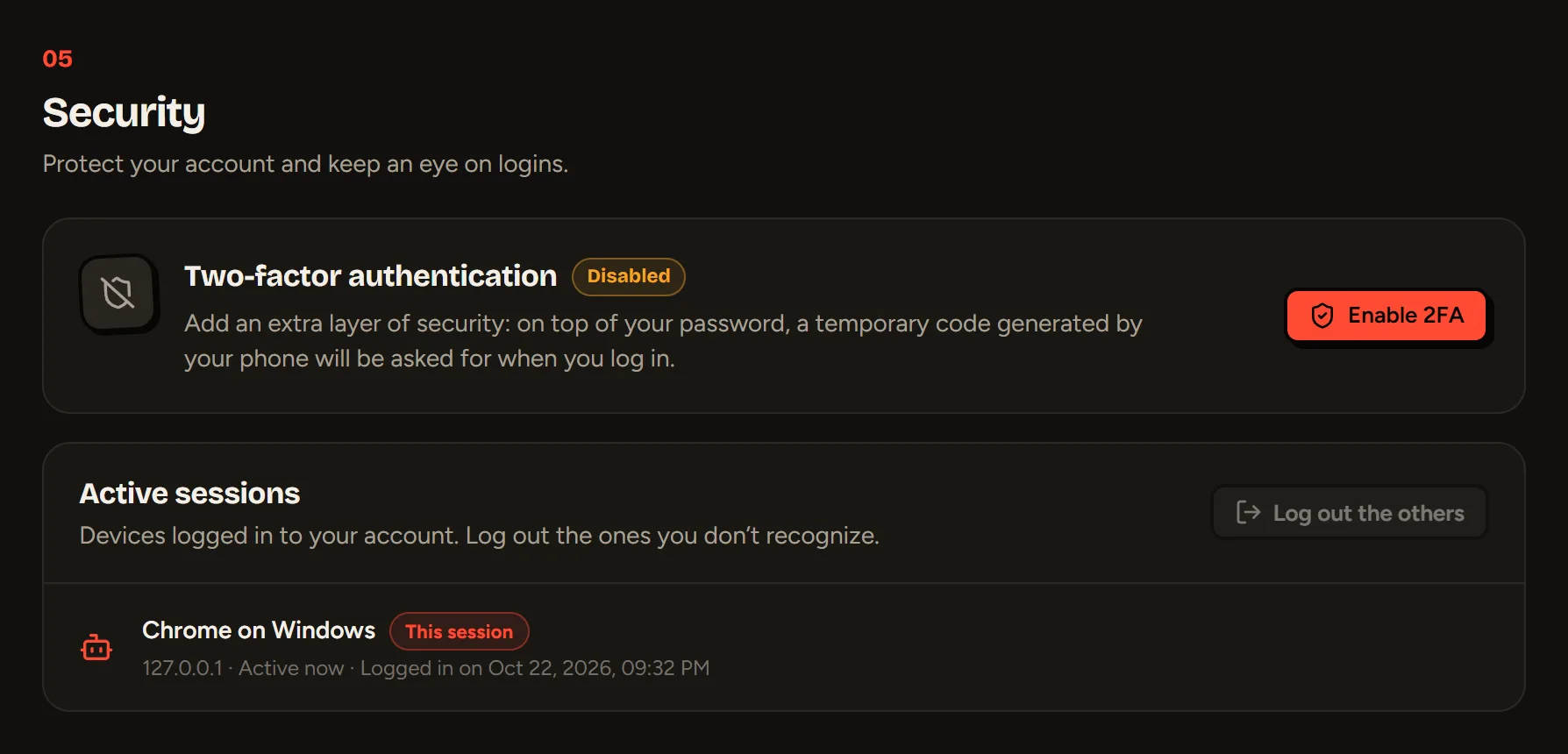
Turning on two-factor authentication (2FA)
With 2FA, a 6-digit code generated by your phone is asked for every time you log in, on top of your password. Even if someone finds your password, they can’t get in.
- Install an authenticator app: Google Authenticator, Authy, 1Password, Microsoft Authenticator…
- Click Enable 2FA.
- Scan the QR code with the app (or copy the Manual key).
- Enter your password and the 6-digit code shown in the app.
- Save your 10 recovery codes (Copy or Download button), then click I’ve saved my codes.
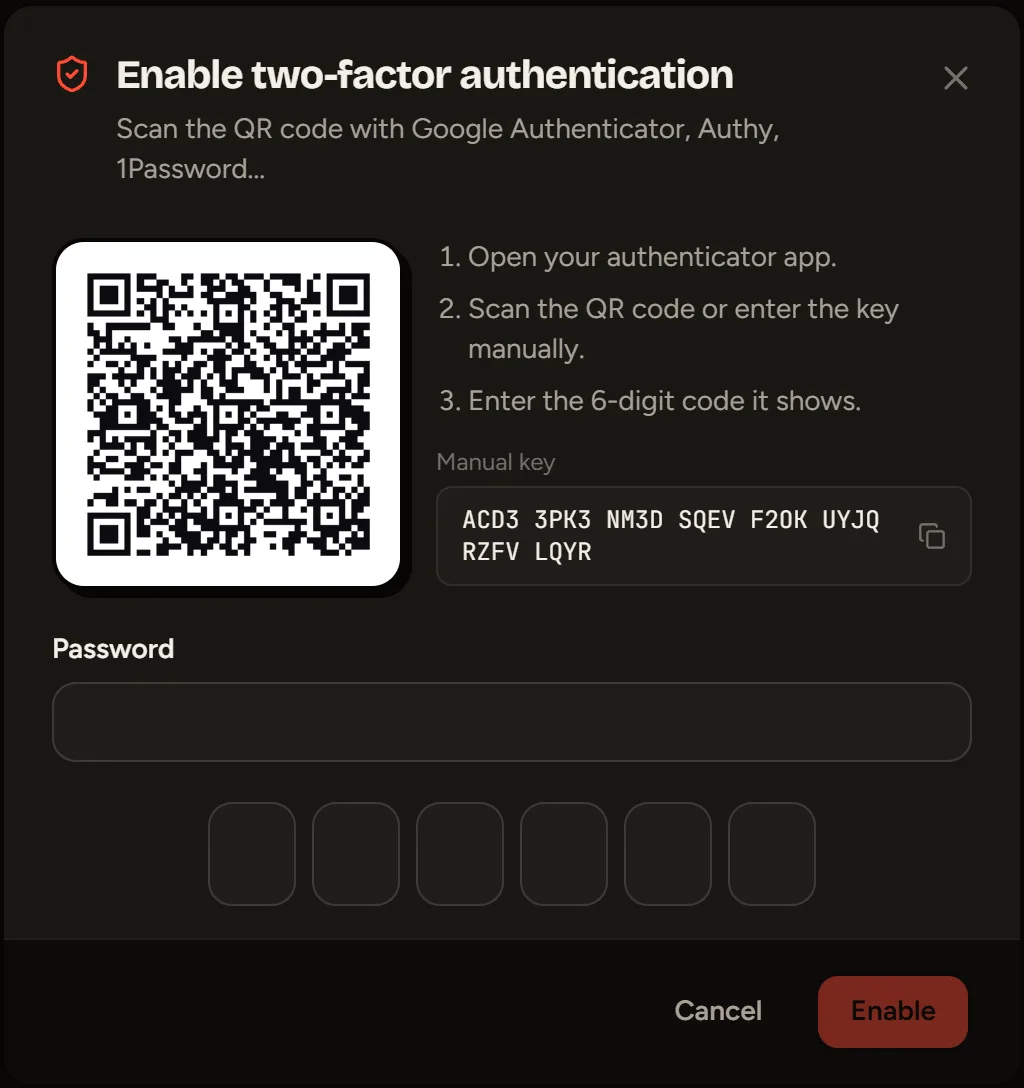
Turning on 2FA logs out your other devices.
Logging in with 2FA
After your password (or your Discord / Google login), SLAZE asks for the 6-digit code from your app. Lost your phone? Click Use a recovery code and enter one of your codes (XXXX-XXXX format).
Backup codes and turning it off
- Backup codes: generates 10 new codes (the old ones stop working). You need a code from your app.
- Disable: you need your password and a code from your app or a recovery code.
Active sessions
The list shows each device logged in to your account: browser, system, IP address, last activity. The one you’re using is marked This session.
- Log out ends a session.
- Log out the others ends every session except yours.
Still stuck?
Email us and describe the problem: we’ll reply by email, in English or French.